Accessing the Web Interface
To access the web interface, follow these steps:
- Using a web browser on any device connected to the network, enter the following web address: https://kvhonboard.com. (If the web interface does not appear, try entering the system'sHub’s IP address instead; default is https://192.168.5.1. However, you might need to bypass a warning from your browser to proceed to the site.)
- If the Setup Wizard appears, you first need to run through the Wizard to set basic system preferences and passwords prior to using the system.
- At the login screen, log in with your "admin" or "guest" password. (Only the administrator can update software or make changes to system settings.)
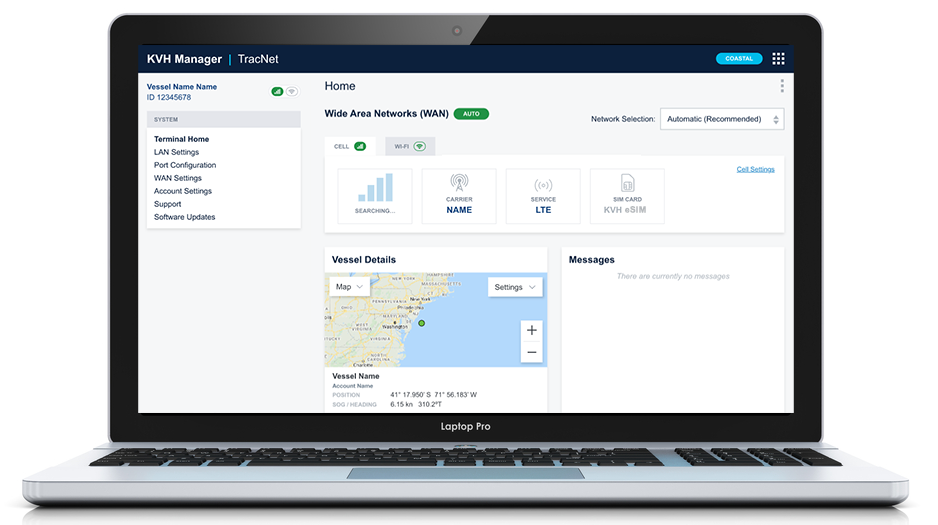
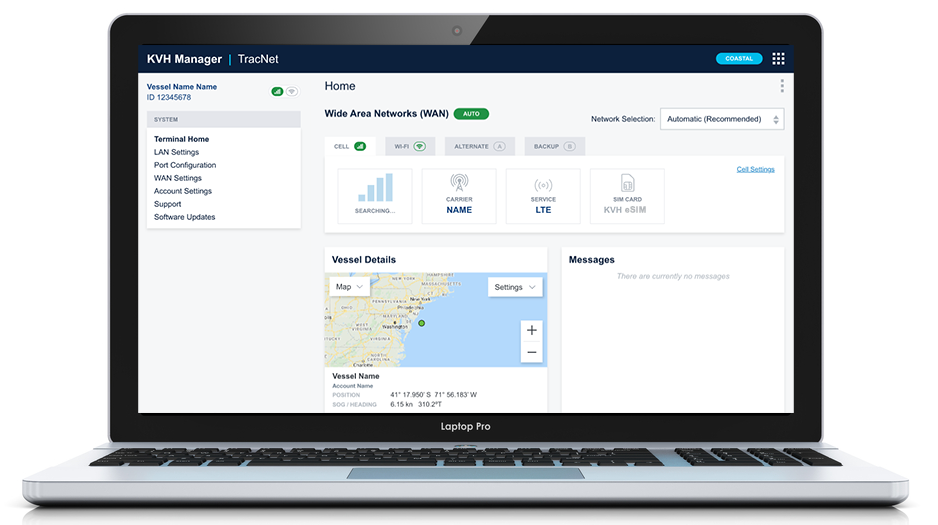
- Once you are logged in, the Home page will appear. For details about the information provided on this page, see Status Information. Navigate to other pages by selecting them from the menu.
Note: If you have the KVH Connect app installed on your smartphone or tablet, you can connect your device via the SSID to the Hub'ssystem's network then use the app to connect to the system. The KVH Connect app is available for free from the Apple App Store or Google Play Store.
Note: The installer should have set up admin and guest passwords for you. If you have forgotten them, you can reset the system by cycling power (applying and removing power to the system in intervals of five seconds) six times in a row. This will activate the Setup Wizard when you visit the web interface, which will allow you to reconfigure the system and create new passwords.
Note: The installer should have set up admin and guest passwords for you. If you have forgotten them, you can reset the system and use the Setup Wizard to reconfigure the system and create new passwords. See Factory Reset for details.
Web Interface Home Page

Was this topic helpful? Please share your feedback.
© 2024-2025, KVH Industries, Inc., All rights reserved.