No-Transmit Zones
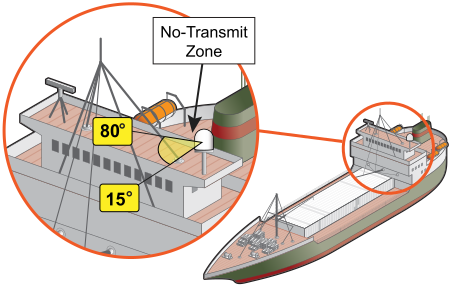
To prevent exposure to the antenna’s radiated RF (radio frequency) energy, you can configure up to two no-transmit zones for areas where crew and passengers frequent. Whenever the antenna points within a no-transmit zone, the system disables the VSAT transmitter. Transmission capability is restored whenever the antenna points outside the zone.
See RF Radiation Hazard Area for details on the minimum safety distances.
Example of a No-Transmit Zone
Status of No-Transmit Zones
You can view the current status of the system’s no-transmit zones on the Home page of the system's web interface. The No-Transmit Zones column will display one of the following status indications:
- TX ENABLED – One or two no-transmit zones have been set up, but antenna is not pointing within a zone.
- TX DISABLED – One or two no-transmit zones have been set up and are currently being enforced. The antenna is prohibited from transmitting.
- IGNORE – One or two no-transmit zones have been set up, but they are currently being ignored (see Disabling No-Transmit Zones below). The antenna can transmit in any direction without restriction.
- NO ZONES – No zones have been set up yet.
Establishing No-Transmit Zones
To configure a no-transmit zone, follow these steps.
Step 1- Identify the Azimuth Range
First, you need to determine the necessary azimuth range for the no-transmit zone(s). You will need to enter, in clockwise order, the beginning and ending azimuths that define the outer boundaries of the zone, relative to the antenna’s forward arrow, which should be pointing toward the bow.
Note: Each no-transmit zone must span at least 5º. Therefore, be sure to set beginning and ending azimuths at least 5º apart.
Step 2 - Identify the Elevation Range
Now you need to determine the necessary elevation range for the no-transmit zone(s). You will need to enter, in ascending order, the beginning and ending elevations that define the outer boundaries of the zone.
Note: Each no-transmit zone must span at least 5º. Therefore, be sure to set beginning and ending elevations at least 5º apart.
Step 23 - Configure the No-Transmit Zone(s) at the Web Interface
- At either the system's web interface or KVH Manager, go to the No-Transmit Zones page.
- Select .
- Make sure is selected.
IMPORTANT! When “Enforce Zones” is selected, the antenna will not transmit whenever it points within one of your configured no-transmit zones. If “Ignore Zones” is selected instead, the zones are disabled, allowing the antenna to transmit in any direction without restriction.
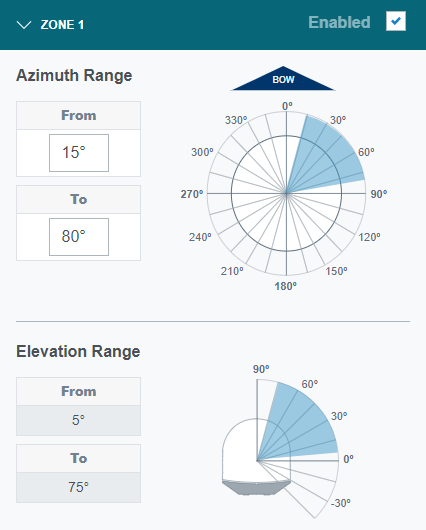
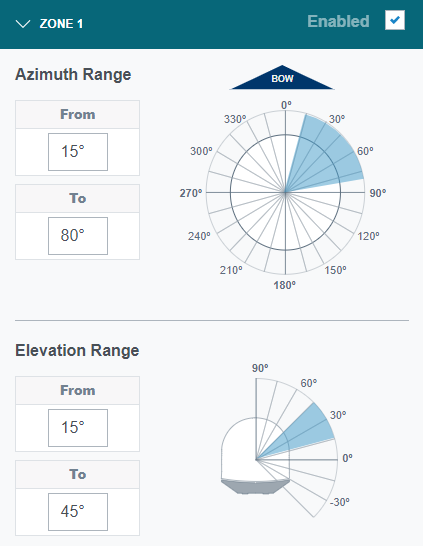
- Enter the azimuth and elevation range for Zone 1. The elevation range is automatically set to the antenna's operating range.
- Select.
- If you wish to set up a second no-transmit zone, enter the azimuth and elevation range for Zone 2.
- Select .
Configuring No-Transmit Zones (Example)
Disabling No-Transmit Zones
You can disable your programmed no-transmit zones to temporarily remove all restrictions on transmissions. This function permits the antenna to ignore the zones; it does not delete them from the system’s memory.
 CAUTION CAUTION |
|
RF Radiation Hazard Disabling no-transmit zones allows the antenna to transmit in any direction, even if the antenna is pointing in an area accessible to passengers and crew. Make sure everyone stays the minimum safe distance away from the antenna while it is in use (see RF Radiation Hazard Area). |
To disable the no-transmit zones, follow these steps:
- At the system's web interface or KVH Manager, go to the No-Transmit Zones page.
- Select .
- Select.
- Select .
Note: As an alternative, you can disable a single zone by deselecting for that zone.
Clearing No-Transmit Zones
You can clear all no-transmit zones from the system’s memory. Unlike disabling zones, clearing zones permanently deletes them.
| CAUTION |
|
RF Radiation Hazard Clearing no-transmit zones allows the antenna to transmit in any direction, even if the antenna is pointing in an area accessible to passengers and crew. Make sure everyone stays the minimum safe distance away from the antenna while it is in use (see RF Radiation Hazard Area). |
To clear the no-transmit zones, follow these steps:
- At the system's web interface or KVH Manager, go to the No-Transmit Zones page.
- Select .
- Select .
- At the confirmation message, select .

Was this topic helpful? Please share your feedback.
© 2024-2025, KVH Industries, Inc., All rights reserved.