Groups and Users
You can set up custom groups in KVH Manager to organize the vessels under your account(s) and manage their users and KVH products and services as you require. For example, you may set up two groups with different instances of KVH Crew Internet service, each group consisting of a customer's fleet with a unique pool of crew users.
Groups function similar to accounts in KVH Manager. However, unlike accounts, which must be set up by KVH Airtime Services, groups can be set up and modified at any time in KVH Manager by any KVH Manager user on your account with Group Manager permission. Groups should be used for all your vessel organization needs with the exception of split billing, which can only be managed by corporate accounts.
IMPORTANT! Setup of groups requires access to the Fleet Tools section of KVH Manager and Group Manager permission. To request this permission for the first time (initial Group Manager for the top-level account), contact KVH’s Airtime Services Department. This user can then assign Group Manager permission to other users on the account or corporate account as required.
Creating a Group
IMPORTANT! Select the account that is high enough in your account hierarchy to include all the vessels you would like to include in the group.
- Select .
- Select the account in your account hierarchy that encompasses all the vessels you want to include in the group.
- Select the tab.
- Select .
- Enter a name and description for this group.
- Add the desired vessels to the group.
- Add the desired KVH Manager users to the group. They will have access to the group's vessels and their KVH systems and services in KVH Manager. To limit a user's access to just that group, assign the Groups Only restriction to that user – see below.
- Select .
If you ever need to modify a group's settings, navigate to the group and select the edit (pencil) button. Then make your change and select .
IMPORTANT! If the VTID (terminal ID) of a vessel's terminal changes (e.g., for a subscription change), that vessel will disappear from the group and move under the account. You will need to edit the group to reassign the vessel to it.
Deleting a Group
- Select .
- Select the group you want to delete.
- Select thetab.
- Select the delete (trash can) button.
- Select to confirm. This action cannot be undone.
Managing User Permissions
An existing Group Manager on the account can assign Group Manager and/or eBill permissions to any other user(s) on the account or its corporate account(s). You can also restrict a KVH Manager user's access to just the vessels in their assigned group(s). For example, you might set up a group for one fleet and set up customer users to self-manage the vessels in that fleet without permitting access to the other fleets.
Follow these steps:
- Select .
- Select the account to which the user belongs.
- Select the tab.
- Select the edit (pencil) button next to the user's name.
- Set the desired permissions or restrictions (see below for descriptions).
- Select .
Note: Only users assigned a Customer or Standard role on the account can be limited to Groups Only. To change a user role, submit a request to KVH Airtime Services.
User Roles, Permissions, and Restrictions
| Role | Description |
| Customer | Customer or business unit of KVH account owner |
| Service Provider | KVH Service Provider support agent trained in the use of Fleet Tools |
| Standard | Authorized user on the account |
| Permission | Description |
| Group Manager | Ability to create and edit groups for their account |
| EBill | Access to billing information for the account |
| Restriction | Description |
| Groups Only | Access limited to assigned group(s); cannot view vessels outside that group(s) |
Note: To limit a user's access to a single vessel/platform, contact KVH Airtime Services. (For example, a vessel captain might only require access to their vessel in KVH Manager.) There is no need to set up single-vessel groups.
Removing a User from a Group
- Select .
- Select the group containing the user you want to remove.
- Select thetab.
- Select the edit (pencil) button.
- Select the user then select the button to remove him/her from the group.
- Select Save.
Deleting a User from the Account
- Select .
- Select the account to which the user currently belongs.
- Select thetab.
- Select the edit (pencil) button next to the user's name.
- Select .
Example of Groups and Users
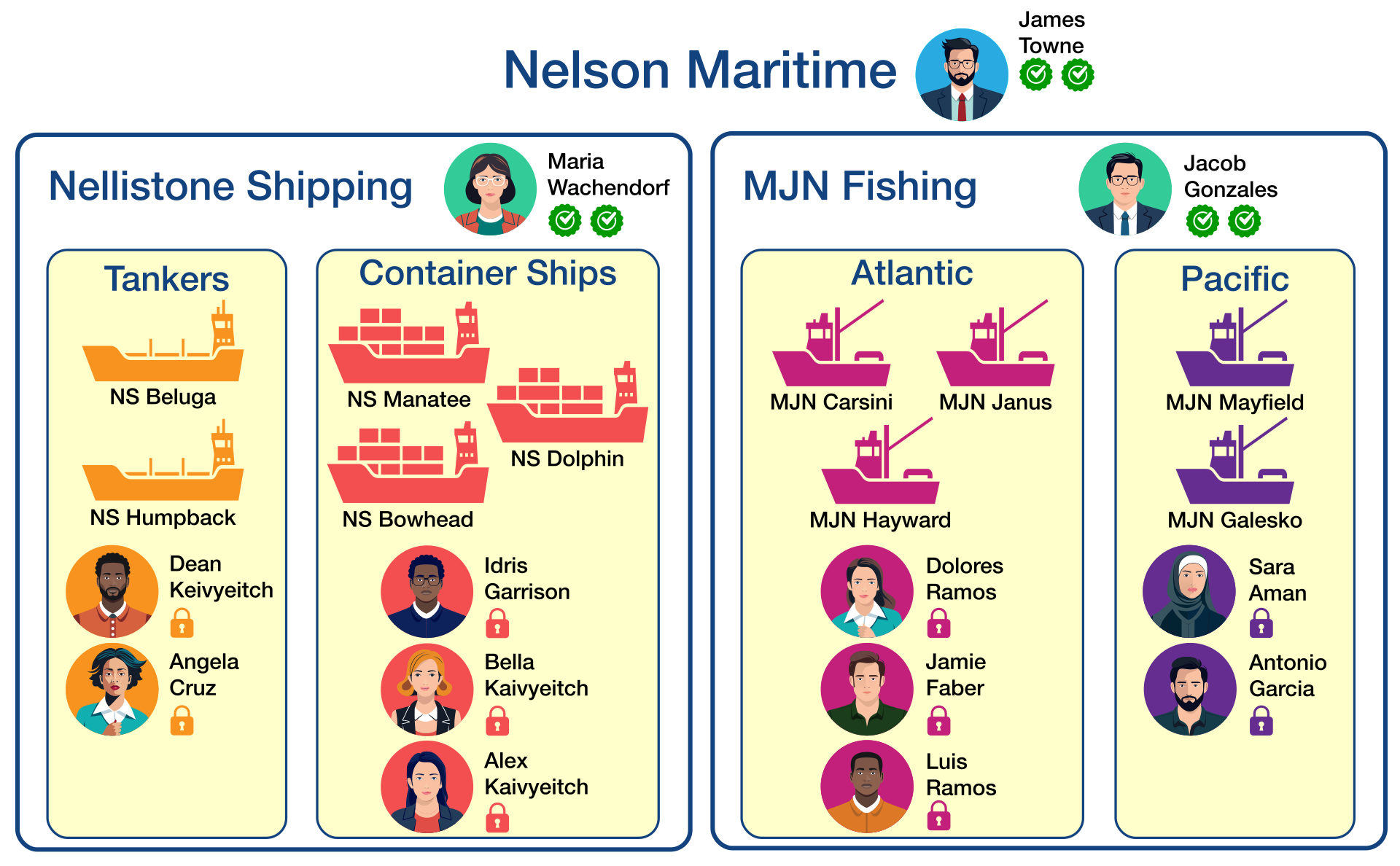
Refer to the diagram below. Nelson Maritime is a top-level account that has two corporate accounts for its businesses Nellistone Shipping and MJN Fishing. James Towne, IT director at Nelson Maritime and a user under the top-level account, asked KVH Airtime Services for Group Manager and eBill permissions. With the Group Manager permission, he was then able to grant Group Manager and eBill permissions to Maria Wachendorf and Jacob Gonzales, senior managers for Nellistone Shipping and MJN Fishing, respectively. Each of them created two groups under their corporate account and assigned users to them with Groups Only permission, so they cannot access the other group. Maria used groups to organize Nellistone Shipping fleets by vessel type, and Jacob organized MJN Fishing fleets by their operating region.

Was this topic helpful? Please share your feedback.
© 2024-2025, KVH Industries, Inc., All rights reserved.